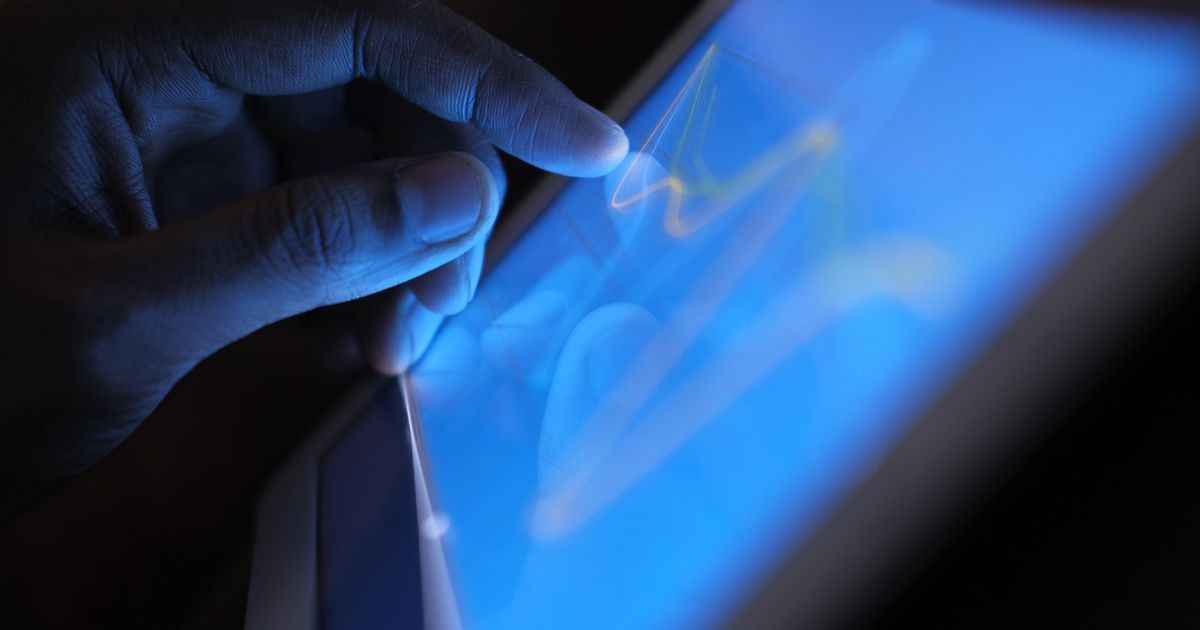
Every touchscreen has to solve a tricky problem: it needs to respond instantly to an intentional tap, but it also needs to ignore the accidental brushes that happen constantly, a sleeve sliding across the glass, a cheek pressing the screen during a call, a finger resting near an edge while scrolling. If the screen reacted to every tiny electrical blip, it would be unusable. So screens are deliberately built to require a touch to clear certain thresholds before it counts as a real tap.
That built-in pickiness is why a very light, fast, or glancing touch sometimes seems to vanish into nothing. It isn't usually a sign of a broken screen. In most cases, the touch simply didn't produce a strong enough or long enough signal for the software to treat it as deliberate input, rather than as noise to be filtered out.
This article walks through the layers of filtering that sit between your finger landing on the glass and the device actually acting on it, and why that filtering sometimes works against you.
Touch Detection Has a Minimum Threshold
A capacitive screen's controller constantly measures tiny shifts in an electrical field across the glass. If every microscopic fluctuation triggered a response, the screen would register touches from static electricity, temperature changes, or electrical noise from nearby components. To prevent that, manufacturers set a minimum signal strength a touch must reach before the controller reports it as a genuine touch event.
A very light brush, a fingertip barely grazing the glass, or contact with just the edge of a nail, may create a disruption too small to cross that threshold. The hardware isn't ignoring you on purpose; the signal simply didn't look different enough from background noise to count.
Software Filters Out 'Noise' Touches
Beyond the raw hardware threshold, the operating system applies its own layer of filtering, sometimes called debouncing, to avoid acting on touches that look accidental. This includes very short-duration contact, touches that appear and disappear within a few milliseconds, or touches near the very edge of the screen where accidental palm contact is common.
This software layer exists because hardware alone can't distinguish between a deliberate quick tap and an unintentional flicker of contact. The operating system looks at patterns over time, how long the contact lasted, how it moved, and where it occurred, before deciding whether to pass it along as a real tap.
Edge and Palm Rejection Can Backfire
Many phones specifically suppress touches near the bezel or corners of the screen to prevent your palm from accidentally triggering buttons while you hold the device or swipe from the edge. This feature, often called edge or palm rejection, is useful when you're gripping the phone naturally, but it can also swallow a deliberate tap if you happen to land near that same zone.
This is especially common on devices with very thin bezels, where there's little non-touch-sensitive border left to grip the phone without your hand overlapping the active touch area.
A Dirty or Wet Screen Raises the Threshold Effectively
A thin film of oil, dust, or moisture on the glass changes how the electrical field behaves at the surface, even before your finger arrives. This added interference can make it harder for the controller to cleanly separate a light tap from the background noise already present on a dirty screen.
In practice, this means a screen that works perfectly with firm taps when clean may start missing lighter taps once it accumulates grime, simply because the signal-to-noise ratio has gotten worse, not because the touch sensor itself has degraded. This is also why manufacturers recommend cleaning a screen with a dry or barely damp microfiber cloth rather than leaving residue from a damp cleaning cloth or a sleeve to build up over weeks of regular use.
Cold Fingers and Dry Skin Reduce Conductivity
Capacitive sensing relies on your skin being conductive enough to disturb the electrical field. Cold weather constricts blood vessels near the skin's surface and often leaves skin drier, both of which slightly reduce how strongly your finger interacts with that field.
This is why touchscreens can feel less responsive to light taps in winter, even indoors, if your hands are cold and dry. The screen isn't working differently; your finger is producing a weaker signal than it would under normal conditions.
When It's Actually a Hardware Problem
If missed taps happen consistently in the same specific spot on the screen regardless of pressure, moisture, or temperature, that points toward a hardware issue rather than normal filtering, often a damaged connection in the sensing grid, frequently following a drop or crack. A true hardware fault tends to be localized and consistent, while threshold-related missed taps tend to be occasional and tied to conditions like speed, dirt, or skin dryness.
How Manufacturers Tune This Balance
Every device maker has to tune the touch threshold, debounce timing, and edge-rejection zones specifically for their hardware, balancing two competing failure modes: a screen that's too sensitive will register pocket touches, sleeve brushes, and raindrops as real taps, while a screen that's too strict will frustrate users with legitimately missed light touches. There's no universal correct setting; each manufacturer calibrates based on their specific screen hardware, intended use cases, and user testing feedback.
This is also why the exact feel of touch responsiveness can differ meaningfully between devices with seemingly similar specifications. Two phones can use very similar capacitive sensing hardware yet feel noticeably different to use, purely because of how aggressively each one's software filters borderline touches before accepting them as intentional input.
Quick Checks Before Assuming Your Screen Is Broken
Common Mistakes
- Pressing harder when a tap doesn't register, which does nothing on a capacitive screen since it reads electrical signals, not pressure.
- Assuming every missed tap means the screen is failing, when it's often just edge rejection or signal filtering doing its job.
- Not cleaning the screen before troubleshooting, even though oil and residue measurably reduce touch sensitivity.
- Blaming the phone in cold weather instead of recognizing that cold, dry skin is less conductive.
Frequently Asked Questions
Is it bad for my phone if taps get ignored sometimes?
No. Occasional ignored taps near edges or during fast, light contact are usually intentional filtering, not a sign of damage.
Why does my screen respond better to a firm tap than a gentle one?
A firmer tap usually means more skin surface area touches the glass for a longer moment, producing a clearer electrical signal for the sensor to detect.
Does a screen sensitivity setting actually change anything?
On devices that offer a touch sensitivity setting, yes. It adjusts the minimum signal threshold the software requires before accepting a touch, which can help with gloves or protectors but may also increase accidental touches.
Will a software update fix missed taps?
Sometimes. Manufacturers periodically tune the filtering algorithms, so an update can change how light or edge touches are interpreted, though it won't fix a physical sensor fault.
Sources
- IEEE Spectrum — sensor and human-computer interaction coverage — https://spectrum.ieee.org/
- National Institute of Standards and Technology — measurement and signal fundamentals — https://www.nist.gov/